Why Your Photos Show Up Sideways: The Tiny Flag That Rotates Every Phone Picture
Your photo looks fine on your phone, then arrives sideways everywhere else. The culprit is one hidden number — the EXIF Orientation tag — and the clever, lazy trick phones use instead of actually turn
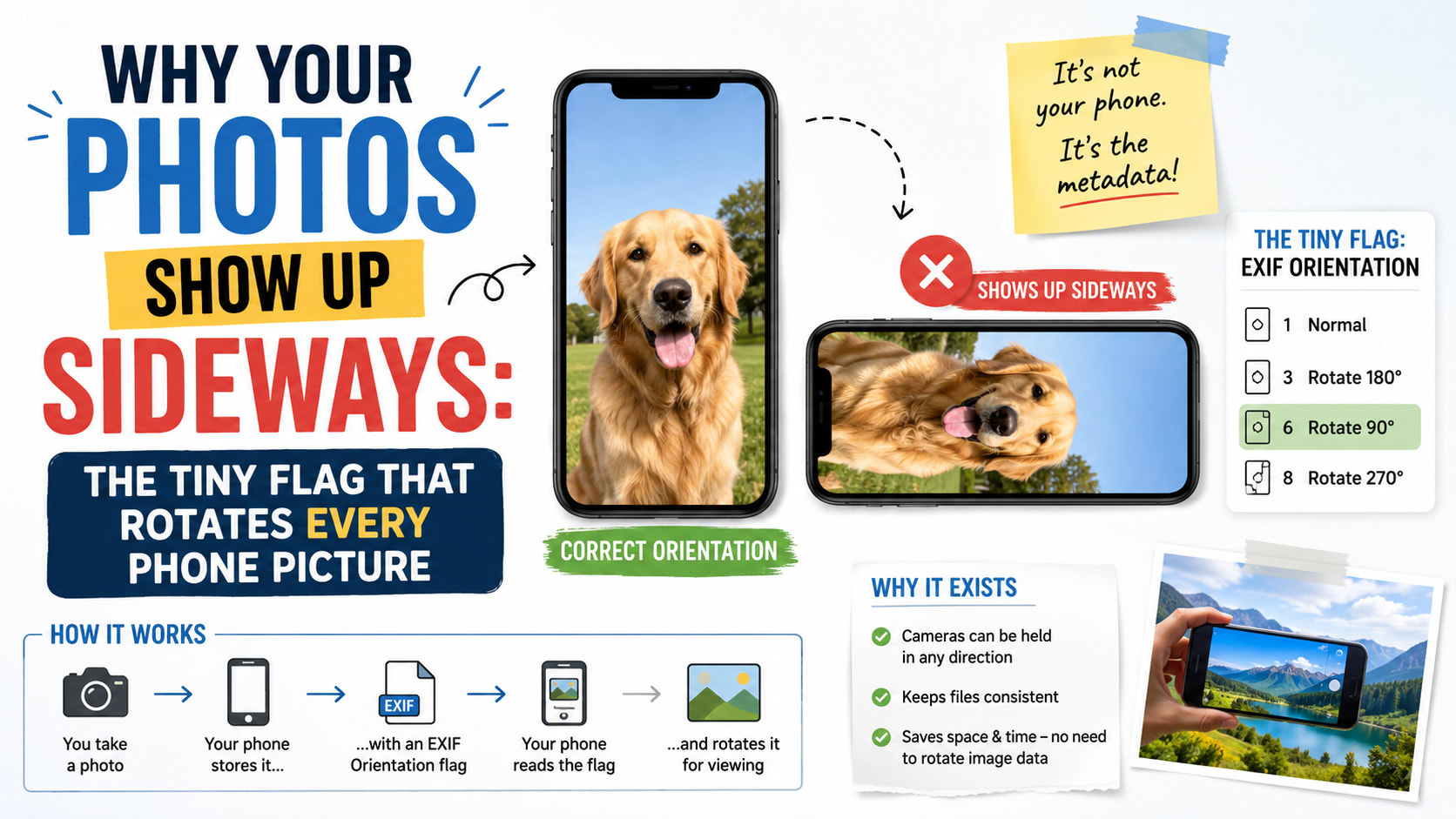
You take a perfectly level photo on your phone, glance at it in your camera roll, and it looks fine. Then you email it to a friend, or upload it to an old website, and it arrives lying on its side — or completely upside down. Nothing about the picture changed. You didn't rotate anything. And yet one program shows it upright while another insists it's sideways.
This maddening little glitch is one of the most common complaints in all of digital photography, and the culprit is a tiny, invisible number tucked inside almost every photo your phone takes. Understanding that number explains the sideways-photo mystery completely — and reveals a genuinely clever piece of engineering hiding behind a everyday annoyance.
Your camera doesn't actually turn the picture
Here's the thing that surprises most people: when you rotate your phone to take a landscape shot, the camera sensor doesn't rotate with it. The sensor is bolted to the phone in one fixed direction. So whether you hold the phone upright or sideways, it captures the scene in the same physical orientation relative to the chip — and then has to figure out which way is "up" for the human looking at it.
It works this out using the same gravity sensor that flips your screen between portrait and landscape. The phone knows how you were holding it at the instant the shutter fired. But instead of spending time and processing power physically rotating millions of pixels, it does something far lazier and far smarter: it saves the image exactly as the sensor recorded it, and writes a small note that says, in effect, "by the way, this should be displayed turned 90 degrees."
That note lives in the photo's EXIF data — the Exchangeable Image File Format metadata that rides along inside most JPEGs. EXIF stores all sorts of behind-the-scenes details: the camera model, the shutter speed, the date, often the GPS coordinates, and crucially, a field called Orientation.
The eight ways an image can be "up"
The Orientation tag is a single number from 1 to 8, and each value is a little instruction to whatever software opens the file. Value 1 means "already upright, do nothing." Value 6 means "rotate 90 degrees clockwise to display correctly." Value 8 means "rotate 90 degrees the other way." Value 3 means "this is upside down, turn it 180 degrees." The remaining values cover mirrored variants, for front cameras and odd cases.
So a photo that looks perfect on your phone is often, at the level of raw pixels, lying on its side — accompanied by a note telling the viewer to turn it. Your phone's gallery app reads the note and obediently rotates the display. The image was never physically straightened; you've simply been looking at a polite suggestion being followed.
This is a beautiful little optimization. Rotating a high-resolution photo means rewriting tens of millions of pixels and re-compressing the whole thing, which costs time, battery and a sliver of image quality every time. Writing a single number costs nothing and is perfectly reversible. Multiply that across the billions of photos taken every day and the savings are enormous. If you ever want to make the rotation permanent rather than a suggestion, that's exactly what an image rotator does — it bakes the turn into the actual pixels and resets the flag.
The standard itself is older than you might guess. EXIF was first defined back in 1995 by a Japanese industry body, in the early days of consumer digital cameras, precisely so that all the contextual information a camera knew — exposure, the lens, the moment, and which way it was pointed — could travel inside the image file rather than being lost the instant the picture was saved. The Orientation tag has been quietly riding along in your photos for almost three decades, doing its job invisibly whenever the software around it cooperates.
So why does the photo end up sideways?
The whole system works on an unspoken agreement: the camera writes the Orientation note, and every program that opens the file promises to read it. The trouble is that, for years, plenty of programs simply didn't keep their side of the bargain.
Older websites, some email clients, certain photo editors and a lot of custom upload scripts would read the raw pixels and ignore the EXIF note entirely. To them, your photo genuinely was sideways, because the only "up" they understood was the literal arrangement of pixels. So your phone said "display this rotated," the receiving software shrugged and said "I don't read notes," and your friend got a photo on its side.
Web browsers were among the worst offenders for a long time. Until surprisingly recently, an image dropped straight into a web page would ignore its orientation flag by default; developers had to opt in, and many didn't know they needed to. It was only around 2020 that honoring EXIF orientation became the standard behavior for images on the web. That single inconsistency is responsible for a decade of sideways profile pictures and rotated product photos across the internet.
The cleverest trick: rotating without losing quality
There's a deeper layer to all this that even many photographers don't know. Because JPEG compresses images in little 8×8 blocks, and because a 90-degree turn is a very orderly operation, it's actually possible to rotate a JPEG by a quarter turn without decoding and re-compressing it at all — by mathematically rearranging and transposing those compressed blocks directly. Specialized tools have done this "lossless rotation" for years. The result is a genuinely rotated image with zero added compression damage, something an ordinary rotate-and-resave can't promise for a lossy format.
It's a neat reminder that the format's block structure, the same thing that produces those blocky artefacts when you over-compress, also makes certain transformations astonishingly clean. Quarter-turns are special. Rotating by an arbitrary angle — say, to straighten a wonky horizon — is a different beast entirely: the image has to be resampled onto a new pixel grid, the rectangle no longer fits neatly, and the freshly exposed corners have to be filled with white or left transparent.
A quiet privacy angle worth knowing
While we're rummaging inside EXIF, it's worth pausing on what else is hiding in there, because it's more than orientation. That same metadata block frequently carries the exact GPS coordinates where a photo was taken, the precise timestamp, and the specific device that took it. Share a holiday snap straight off your phone and you may be handing over the latitude and longitude of where you were standing, accurate to a few metres.
This is why "scrub the metadata" is standard advice before posting photos publicly, and why many social platforms strip EXIF on upload. It also connects back to rotation in a practical way: when you rotate and re-save an image through a tool, the export typically rewrites the file and, in the process, often discards the original EXIF — including that orientation flag (now baked into the pixels) and, helpfully, the location data. A rotated, re-saved photo is frequently a cleaner, more private photo too.
How to actually fix a sideways photo for good
If you keep running into the sideways problem, the durable fix is to stop relying on the note and make the orientation real. Open the image somewhere that reads EXIF correctly so it appears upright, apply the rotation you want, and save a fresh copy. That new file has the rotation written into its actual pixels and its orientation flag reset to "normal," so it will look the same everywhere — in ancient upload forms, stubborn email clients, and modern browsers alike.
A good rotate tool does this in one step, and because it works in the browser, your photo never has to be uploaded to a stranger's server just to be turned the right way up. Drop the image in, nudge it with the 90-degree buttons or straighten it with a fine angle, and download a version that's upright by virtue of its pixels rather than a footnote. You can do exactly that, privately and instantly, with a free rotate image tool.
The takeaway
The sideways-photo problem feels like a bug, but it's really the visible edge of a smart design decision quietly colliding with software that didn't follow the rules. Your phone never wastes effort turning pixels it doesn't have to; it leaves a one-number instruction and trusts everyone downstream to read it. When they do, everything looks perfect. When they don't, your beautifully level photo flops onto its side.
Now that you know the Orientation tag exists, the mystery dissolves — and so does the frustration. A picture that shows up rotated isn't broken, and you're not imagining that it looked fine a moment ago. It did. Somewhere along the way, a program simply forgot to read the note. Bake the rotation in once, and no one can ignore it again.
