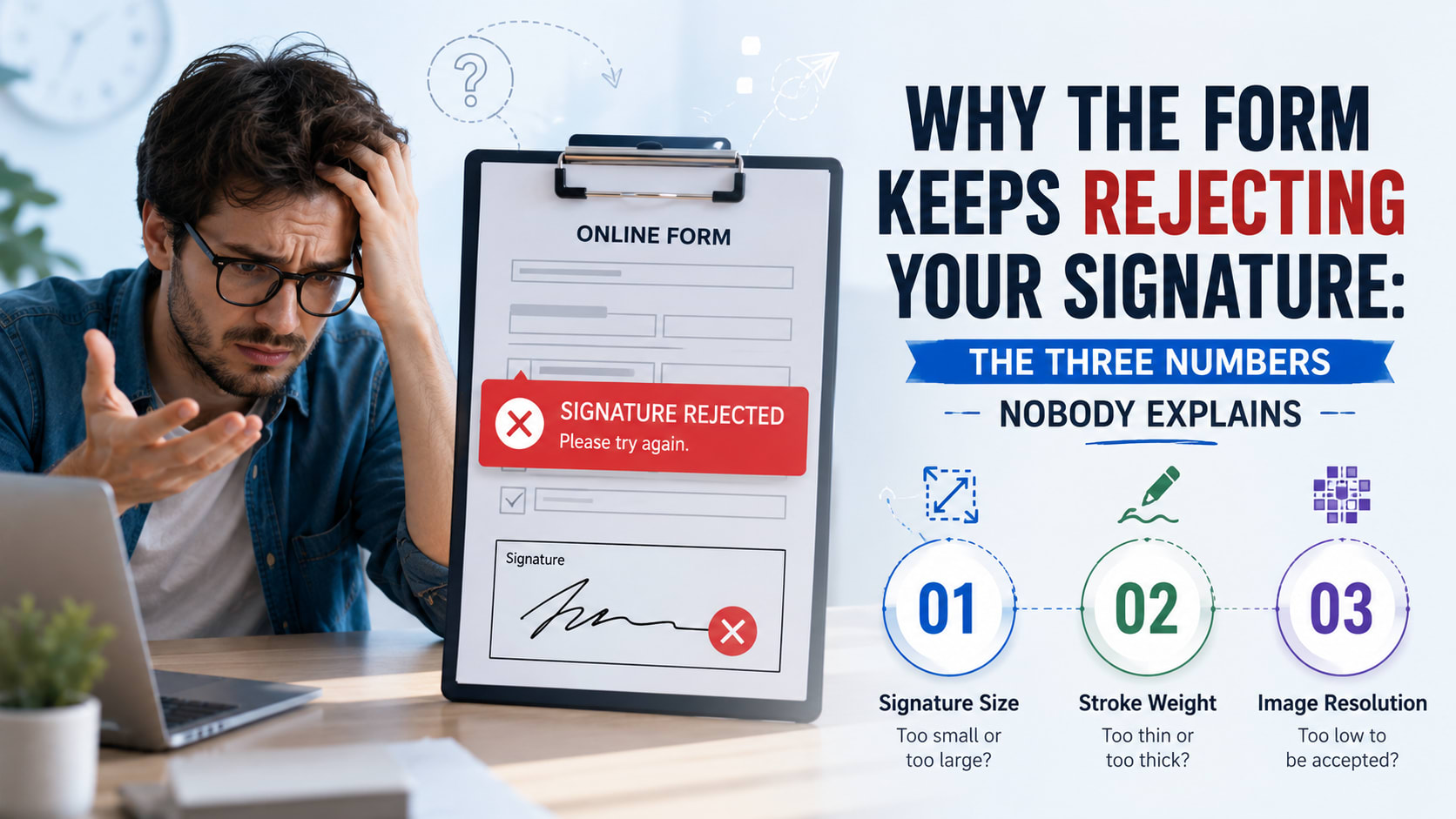
Why the Form Keeps Rejecting Your Signature: The Three Numbers Nobody Explains
Uploading a photo to a government portal means satisfying three completely separate numbers at once — pixels, kilobytes and DPI — and nobody explains that they're independent. Here's what each one rea
Why the Form Keeps Rejecting Your Signature: The Three Numbers Nobody Explains
There is a very particular kind of despair that only exists in the year of a government exam application. You have filled in forty fields correctly. You have your scanned signature ready. You hit upload, and a small red message appears: "Signature must be between 10 KB and 20 KB." You shrink the image. Now it says "dimensions invalid." You fix that. Now it says "file must be JPEG." By the fourth attempt you are convinced the website was designed by someone who actively dislikes you.
Millions of people go through this every single year, and it is almost never their fault. The truth is that uploading a photo to a government portal asks you to satisfy three completely separate numbers at the same time — and absolutely nobody explains that these three numbers are independent of one another. Once you understand what they are and why they refuse to cooperate, the whole maddening ritual finally makes sense. And the SSC photo and signature resizer on this site exists precisely to make all three line up at once, automatically.
So let's pull the curtain back on the three numbers.
Number one: pixels (the actual size of the image)
The first number is the one most people think is the only one: the dimensions, measured in pixels. A digital image is a grid of tiny coloured squares — pixels — and its size is simply how many across and how many down. An SSC signature, for example, needs to be about 709 pixels wide and 236 pixels tall.
Pixels are the honest, physical truth of a digital image. They are the only thing that genuinely exists in the file. Everything else — how big it looks on screen, how large it prints, how many kilobytes it weighs — is downstream of these little squares. When a form rejects your "dimensions," it is counting pixels and finding the wrong number.
Here's the first trap, though: making an image fewer pixels (shrinking it) usually makes the file lighter, but not always by a predictable amount. Which brings us to the number that causes the most rage.
Number two: kilobytes (the weight of the file)
The second number is the file size — how many kilobytes (KB) the image takes up on disk. SSC wants a signature between 10 and 20 KB and a photograph between 20 and 50 KB. This is the number people find most baffling, because it feels like it should be the same as the dimensions. It isn't. Not even close.
Two images with the exact same pixel dimensions can have wildly different file sizes. A 709×236 signature might be 8 KB or 60 KB depending entirely on a hidden setting called JPEG quality — how aggressively the image is compressed. JPEG is a "lossy" format, meaning it throws away visual detail it bets you won't notice in exchange for a smaller file. Crank the quality up and the file balloons; crank it down and it shrinks, but eventually the image turns blocky and smeared. The KB number is really a measurement of how much detail survived compression, not how big the picture is.
This is why the classic trap happens. You resize your signature to the right dimensions, and the file comes out at 7 KB — under the minimum. Frustrated, you make it bigger… and now it's 35 KB, over the maximum. You are trying to hit a narrow window using the wrong dial. The right dial is quality, not dimensions, and finding the exact quality that lands you between 10 and 20 KB by hand is a genuinely fiddly job. (It's the one a good resizing tool does for you by quietly trying many quality levels until one fits.)
There's a fascinating reason these KB limits exist at all, and it's a little fossil of internet history. Government e-application systems were largely built in the early-to-mid 2000s, an era of expensive server storage and slow connections. When millions of applicants each upload a photo and a signature, those kilobytes add up to terabytes fast. A 20 KB cap per signature wasn't an arbitrary cruelty — it was a sensible engineering decision from a time when storage and bandwidth were precious. The limits have simply never been relaxed, partly because the back-end systems that read those files still expect them, so we all keep squeezing our signatures into a constraint set during the dial-up age.
Number three: DPI (the one that's basically a polite fiction)
The third number is the strangest of all, and the one that confuses even technically-minded people: DPI, or "dots per inch." SSC asks for images at "about 300 DPI." People panic about this number, hunt through editing software for it, and assume it's some deep property they're getting wrong.
Here is the secret almost nobody will tell you: for an image you are uploading to a website, DPI is essentially meaningless. It does nothing. It changes nothing about how the image looks on a screen.
DPI is a printing instruction. It only matters when ink hits paper, where it tells the printer how many pixels to cram into each physical inch. A photo at 300 DPI prints sharper than the same photo at 72 DPI — but on a screen, and in an upload, the two are pixel-for-pixel identical. DPI is a number stored as a little note inside the file's header that says, in effect, "if you ever print me, do it at this density." Your monitor ignores it entirely.
So why does SSC ask for it? Because the combination of physical size and DPI is just another way of specifying pixels. "3.5 cm × 4.5 cm at 300 DPI" is simply a print-world way of saying "413 × 531 pixels." The form requirement is written in the language of the print era — centimetres and DPI — even though the file will only ever live on a screen and in a database. It's a relic, like writing "carbon copy" in an email. The honest translation of the whole instruction is just: make it this many pixels, and tag it as 300 DPI so our checker is happy. A proper tool will both produce the right pixel count and write "300 DPI" into the file's header so the requirement is satisfied on paper, even though it makes no visual difference.
Understanding this single fact removes about half the anxiety from the whole process. You are not failing to achieve some mysterious resolution. You just need the right pixels and the right little header tag.
Why blurry and crooked signatures get rejected
Two more SSC rules deserve a quick, practical explanation, because they trip people up: signatures must not be blurred or "miniature," and they must be horizontally aligned.
The blur-and-miniature rule is about a real downstream problem. Your signature on an application is a verification anchor — it may be compared against the signature you give in the examination hall and at document checks. If the uploaded version is a tiny, fuzzy smudge, it's useless for that comparison, so it's rejected up front. The deeper cause is usually that someone photographed a small signature from far away, or cropped a tiny region and then stretched it up. Stretching a small image to fill a larger frame doesn't add detail — it just makes the existing blur bigger, the way zooming into a low-resolution photo only enlarges the fuzziness. The fix is always to start with a larger, sharper source: sign big on white paper, photograph or scan it well-lit and close, and crop down from plenty of pixels rather than up from too few.
The horizontal-alignment rule is simpler but easy to miss. Scanned or photographed signatures often come out slightly tilted, and a visibly slanted signature can be flagged. The remedy is a quick rotation to level it before you crop — which is why a resizer built for this job includes rotate controls, so you can straighten a wonky scan in one tap.
How to never get rejected again
Once the three numbers click into place, the winning strategy is obvious. You are not fighting one requirement; you are satisfying three independent ones — pixels, kilobytes, and a DPI tag — plus making sure the image is sharp and straight. Do them in the right order and rejection becomes almost impossible.
Start with a generous source image: a clear, well-lit photo or a clean scan with lots of pixels to spare. It is always easier to throw detail away than to invent it, so begin with more than you need. Crop to the correct shape — locked to the right aspect ratio so the proportions are exact — framing your face or your signature tightly. Resize that crop to the precise pixel dimensions the form wants. Then, and only then, tune the JPEG quality until the file weight lands inside the allowed kilobyte window. Finally, tag it as 300 DPI to satisfy the print-era wording, save it as JPEG, and you're done.
That's a lot of careful steps to do by hand in an image editor, especially the back-and-forth of nudging quality to hit a 10 KB-wide target. It's exactly the kind of fiddly, repetitive precision a computer should handle for you. The SSC photo and signature resizer does the whole sequence in one go: you pick photo or signature mode, drop your image in, drag a crop box that's already locked to the right proportions, rotate if your scan is tilted, and it produces an exact-dimension JPEG, automatically compressed into the correct KB range, tagged at 300 DPI — with a little checklist confirming every requirement is met before you download. And because it all runs inside your own browser, your photo and signature never leave your device.
There's a small, quiet satisfaction in finally understanding the thing that has frustrated millions of applicants. The government portal isn't broken and it isn't out to get you. It's just asking, in the awkward dialect of an older internet, for three numbers that happen to live in completely different parts of an image file. Get all three right at once — or let a tool get them right for you — and that little red rejection message disappears for good. Make an SSC-ready photo and signature here and skip straight to the part where the upload simply works.
